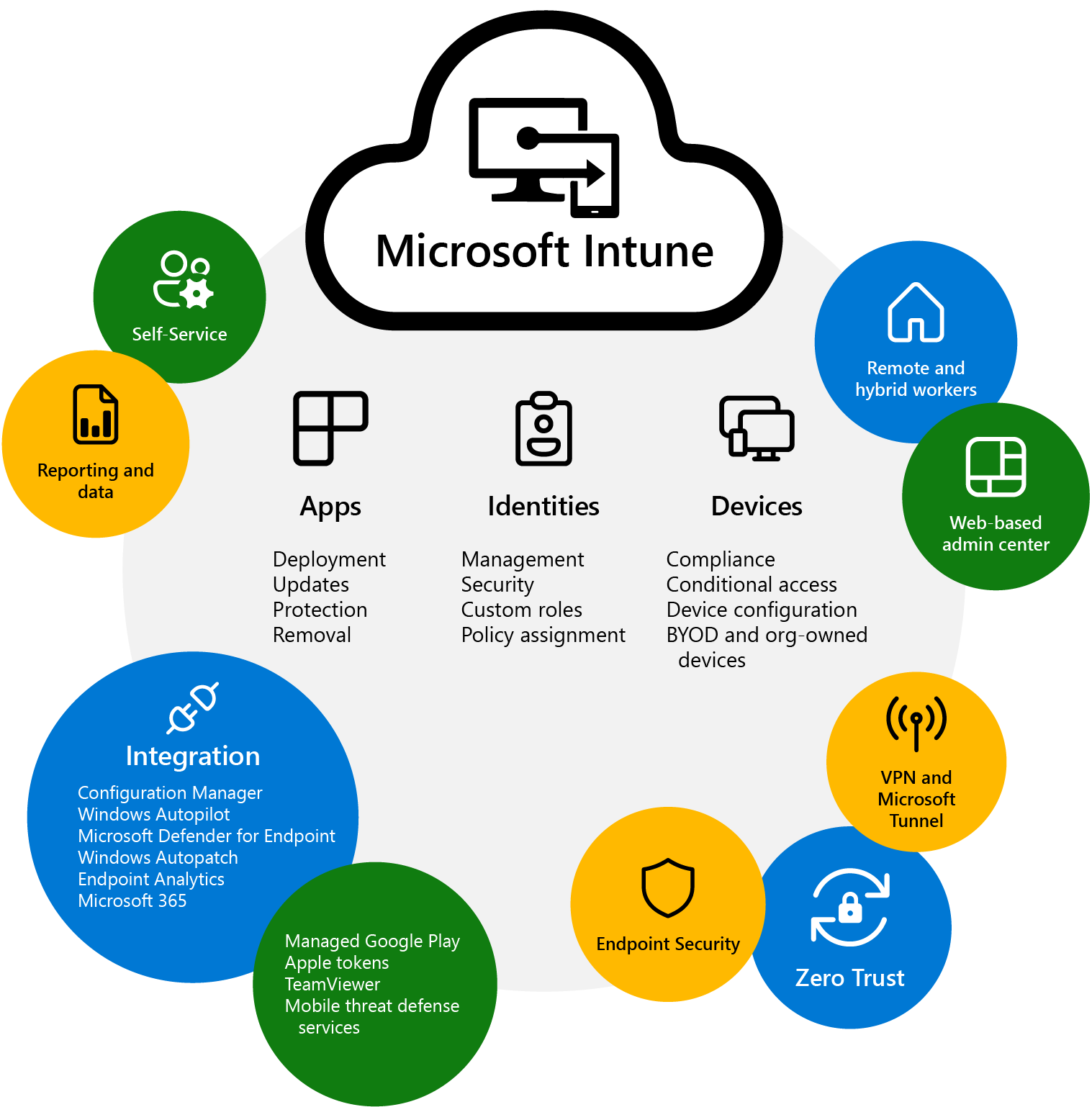
What is Intune
Manually register devices for Windows Autopilot
ALT + F10 on windows boot apres avoir selectionner la bonne langue de clavier
Set-ExecutionPolicy -Scope Process -ExecutionPolicy RemoteSigned
Install-Script -name Get-WindowsAutopilotInfo -Force
Set-ExecutionPolicy -Scope Process -ExecutionPolicy RemoteSigned
Get-WindowsAutopilotInfo -Online
References: Manually register devices with Windows Autopilot | Microsoft Learn
Apps Packaging
Display Name: Adobe Acrobat Reader DC
Display Version: 23.003.20244.0
Publisher: Adobe Systems Incorporated
Disk Space Required: 500mb

Install: Setup.exe -s /msi /L*v "C:\ProgramData\PG\Logs\Intune-Adobe-Acrobat-Reader-Install.log"
Uninstall: MsiExec.exe /X{AC76BA86-7AD7-FFFF-7B44-AC0F074E4100} /qn /norestart /L*v "C:\ProgramData\PG\Logs\Intune-Adobe-Acrobat-Reader-UnInstall.log"
Detection Method: {AC76BA86-7AD7-FFFF-7B44-AC0F074E4100}
$KeyPath = "HKCU:\Registry\Key\Path"
$ValueName = "name"
$ValueData = "data"
try{
    Get-ItemProperty -Path $KeyPath -Name $valueName -ErrorAction Stop
}
catch [System.Management.Automation.ItemNotFoundException] {
    New-Item -Path $KeyPath -Force New-ItemProperty -Path $KeyPath -Name $ValueName -Value $ValueData -Force
}
catch {
    New-ItemProperty -Path $KeyPath -Name $ValueName -Value $ValueData -Type String -Force
}
Forticlient package
# Name of the executable file
$ExecName =  "FortiClientVPNSetup_7.2.4.0972_x64.exe"

# Get the directory path of the current script
$scriptPath = Split-Path -Parent $MyInvocation.MyCommand.Definition

# Define the path to the executable file
$executablePath = Join-Path -Path $scriptPath -ChildPath $ExecName

# Check if the executable file exists
if (Test-Path $executablePath -PathType Leaf) {
    # Execute the executable file
    Start-Process -FilePath $executablePath -ArgumentList "/quiet /norestart" -Wait
} else {
    Write-Host "Executable file not found at: $executablePath"
}

# Set VPN server and credentials
$azureSSOSettings = @{
    "sso_enabled" = 1
    "Server" = "myfipoi.fipoi.ch:443"
}

# Configure Azure SSO settings
if (Test-Path -LiteralPath $keyPath ) {
    foreach ($setting in $azureSSOSettings.GetEnumerator()) {
        Set-ItemProperty -Path $keyPath -Name $setting.Key -Value $setting.Value
    }
} else {
    New-Item -Path $keyPath -Force -ea SilentlyContinue
    foreach ($setting in $azureSSOSettings.GetEnumerator()) {
        Set-ItemProperty -Path $keyPath -Name $setting.Key -Value $setting.Value
    }
}
Local location of a powershell script
# Get the directory path of the current script
$scriptPath = Split-Path -Parent $MyInvocation.MyCommand.Definition

# Define the path to the executable file
$executablePath = Join-Path -Path $scriptPath -ChildPath $ExecName
Proactive Remediations scrips
Adobe
<#
.SYNOPSIS
    PowerShell script to remediate the document message bar in Adobe Reader.
.EXAMPLE
    .\UAT-Win10-01-Remediate-CplIntSettings.ps1
.DESCRIPTION
    This PowerShell script is deployed as a remediation script using Proactive Remediations in Microsoft Endpoint Manager/Intune.
.LINK
https://docs.microsoft.com/en-us/mem/analytics/proactive-remediations
https://helpx.adobe.com/enterprise/kb/mpip-support-acrobat.html
.NOTES
    Version:        1.0
    Creation Date:  July 25, 2023
    Author:         JiPJab
#>

[CmdletBinding()]
Param (
)

$AdobeReaderKeyPath = @("HKCU:\SOFTWARE\Adobe\Acrobat Reader\DC\MicrosoftAIP")
$ValueName = "bShowDMB"
$ValueData = 1
try{
    Get-ItemProperty -Path $AdobeReaderKeyPath -Name $valueName -ErrorAction SilentlyContinue
    Write-host 'Impossible de trouver HKCU:\SOFTWARE\Adobe\Acrobat Reader\DC\MicrosoftAIP.'
    Write-Verbose 'Impossible de trouver HKCU:\SOFTWARE\Adobe\Acrobat Reader\DC\MicrosoftAIP.'
    Exit 1
}
Catch {
    $ErrorMessage = $_.Exception.Message
    Write-Warning $ErrorMessage
    Exit 1
}
<#
.SYNOPSIS
    PowerShell script to remediate the document message bar in Adobe Reader.
.EXAMPLE
    .\UAT-Win10-01-Remediate-CplIntSettings.ps1
.DESCRIPTION
    This PowerShell script is deployed as a remediation script using Proactive Remediations in Microsoft Endpoint Manager/Intune.
.LINK
https://docs.microsoft.com/en-us/mem/analytics/proactive-remediations
https://helpx.adobe.com/enterprise/kb/mpip-support-acrobat.html
.NOTES
    Version:        1.0
    Creation Date:  July 25, 2023
    Author:         JiPJaB
#>

[CmdletBinding()]
Param (
)

$AdobeReaderKeyPath = @("HKCU:\SOFTWARE\Adobe\Acrobat Reader\DC\MicrosoftAIP")
$ValueName = "bShowDMB"
$ValueData = 1
try{
    New-Item -Path $AdobeReaderKeyPath -Force
    New-ItemProperty -Path $AdobeReaderKeyPath -Name $ValueName -Value $ValueData -Force
}

catch {
    $ErrorMessage = $_.Exception.Message
    Write-Warning $ErrorMessage
    #Exit 1
}
Azure Dynamic Groups
(device.devicePhysicalIDs -any (_ -contains "[ZTDID]"))
(device.devicePhysicalIds -any _ -contains “[ZTDId]”) and (device.deviceOSType -contains “Windows”) and (device.deviceOwnership -contains “Company”)
(device.deviceOSVersion -startsWith “10.0.1”) -and (device.DeviceOSType -startsWith “Windows”)
Group naming conventions (AD, AAD, 365)
SG_AR_Company_Windows_Corp_Devices Toutes les machines corporate Windows
AR_Company_MacOS_Corp_Devices Toutes les machines corporate MacOS
AR_Company_WinServers_Devices Toutes les serveurs Windows
AR_Company_LNX_Devices Toutes les serveurs Linux
AR_Company_Apple_Corp_Devices Toutes les machines corporate Apple
AR_Company_Android_Corp_Devices Toutes les machines corporate Android
AR_Company_MacOS_Guest_Devices Toutes les machines guest MacOS
AR_Company_Android_Guest_Devices Toutes les machines guest Android
AR_Company_Windows_Guest_Devices Toutes les machines guest Windows
AR_Company_MacOS_Guest_Devices Toutes les machines guest MacOS
AR_Kyos_Guest_Users Tous les comptes invités du tenant
Azure Local users
OMA-URI 1
Name - Local Admin
Description - Set Local Admin
OMA-URI - ./Device/Vendor/MSFT/Accounts/Users/rahuljindallocaladmin/LocalUserGroup
Data Type - Interger
Value - 2
OMA-URI 2
Name - Local Admin Password
Description - Set Local Admin Password
OMA-URI - ./Device/Vendor/MSFT/Accounts/Users/rahuljindallocaladmin/Password
Data Type - String
Value - P@55w0rd
````
https://rahuljindalmyit.blogspot.com/2021/05/intune-different-ways-of-setting-local.html

## Device queries
All Company owned devices   (device.deviceOwnership -eq “Company”)
All personally owned devices    (device.deviceOwnership -eq “Personal”)
All devices not managed by a MDM    (device.managementType -ne “MDM”)
All devices managed by a MDM    (device.managementType -eq “MDM”)
All devices managed by SCCM     (device.deviceManagementAppId -eq “54b943f8-d761-4f8d-951e-9cea1846db5a”)
All devices managed by Intune   (device.deviceManagementAppId -eq “0000000a-0000-0000-c000-000000000000”)
All devices from AD device.deviceTrustType -eq “ServerAd”
All devices from Azure AD   (device.deviceTrustType -eq “AzureAd”)
All devices not joined to AAD or AD (device.deviceTrustType -eq “Workplace”)

## Windows
All Windows Devices (device.deviceOSType -match “Windows”)
All company owned Windows devices   (device.deviceOSType -eq “Windows”) -and (device.deviceOwnership -eq “Company”)
All personally owned Windows devices    (device.deviceOSType -eq “Windows”) -and (device.deviceOwnership -eq “Personal”)
All Windows virtual machines    (device.deviceModel -eq “Virtual Machine”)

## Android
All Android devices (device.deviceOSType -match “Android”)
All company owned Android devices   (device.deviceOSType -eq “Android”) -and (device.deviceOwnership -eq “Company”)
All personally owned Android devices    (device.deviceOSType -eq “Windows”) -and (device.deviceOwnership -eq “Personal”)
All Android Enterprise devices  (device.deviceOSType -match “AndroidEnterprise”)
All company owned Android Enterprise devices    (device.deviceOSType -eq “AndroidEnterprise”) -and (device.deviceOwnership -eq “Company”)
All Android devices enrolled with a specific profile name   (device.enrollmentProfileName -contains “Dedicated”)    Update the rule with the same name you gave your enrollment profile

## iOS
All iPads devices   (device.deviceOSType -eq “iPad”)
All personally owned iPad devices   (device.deviceOSType -eq “iPad”) -and (device.deviceOwnership -eq “Personal”)
All Company owned iPad devices  (device.deviceOSType -eq “iPad”) -and (device.deviceOwnership -eq “Company”)
All iPhones devices (device.deviceOSType -eq “IPhone”)
All personally owned iPhone devices (device.deviceOSType -eq “IPhone”) -and (device.deviceOwnership -eq “Personal”)
All Company owned iPhone devices    (device.deviceOSType -eq “IPhone”) -and (device.deviceOwnership -eq “Company”)

## macOS
All Mac devices (device.deviceOSType -eq “MacMDM”)
All Company owned Mac devices   (device.deviceOSType -eq “MacMDM”) -and (device.deviceOwnership -eq “Company”)

## Device Queries for Autopilot
All Autopilot registered devices    (device.devicePhysicalIDs -any _ -contains “[ZTDId]”)
A specific device thats autopilot registered    (device.devicePhysicalIDs -contains “[ZTDId]:6598-3522-5834-2658-4381-8581-32”) If you want to create a dynamic group only containing one specific device you can specify the ZTDid for that device.
Autopilot devices with a specific OrderID (Group Tag)   (device.devicePhysicalIds -any _ -eq “[OrderID]:SelfDeploying”)
Autopilot devices that have been enrolled using a specific enrollment profile   (device.enrollmentProfileName -eq “APHybridJoin”)   Name of the Autopilot enrollment profile.

## User queries
All Users with EMS assigned and enabled user.assignedPlans -any (assignedPlan.service -eq “SCO” -and assignedPlan.capabilityStatus -eq “Enabled”)
All users with an AAD enabled account   (user.accountEnabled -eq True)
All users with an email that contains .com  (user.mail -contains “.com”)
All Users with a Intune license thats not disabled.     USER.ASSIGNEDPLANS -ANY (ASSIGNEDPLAN.SERVICEPLANID -EQ “c1ec4a95-1f05-45b3-a911-aa3fa01094f5” -and assignedPlan.capabilityStatus -ne “Disabled”)
All users with Yammer Enterprise license assigned and enabled.  user.assignedPlans -any (assignedPlan.service -eq “YammerEnterprise” -and assignedPlan.capabilityStatus -eq “Enabled”)
All users with MicrosoftPrint license assigned and enabled.     user.assignedPlans -any (assignedPlan.service -eq “MicrosoftPrint” -and assignedPlan.capabilityStatus -eq “Enabled”)
All guest users in AAD  (user.userType -eq “Guest”) Users created in AAD or AD are “Members” and all users you invited in to your tenant are labeled as “Guest”
Update Intune connector
Get the PowerShell script here: https://github.com/stevecapacity/IntunePowershell/blob/main/HybridConnectorFixer.ps1 Video: https://www.youtube.com/watch?v=cZZ0O1vn2do&t=163s https://techcommunity.microsoft.com/blog/intunecustomersuccess/microsoft-intune-connector-for-active-directory-security-update/4386898
Hybride
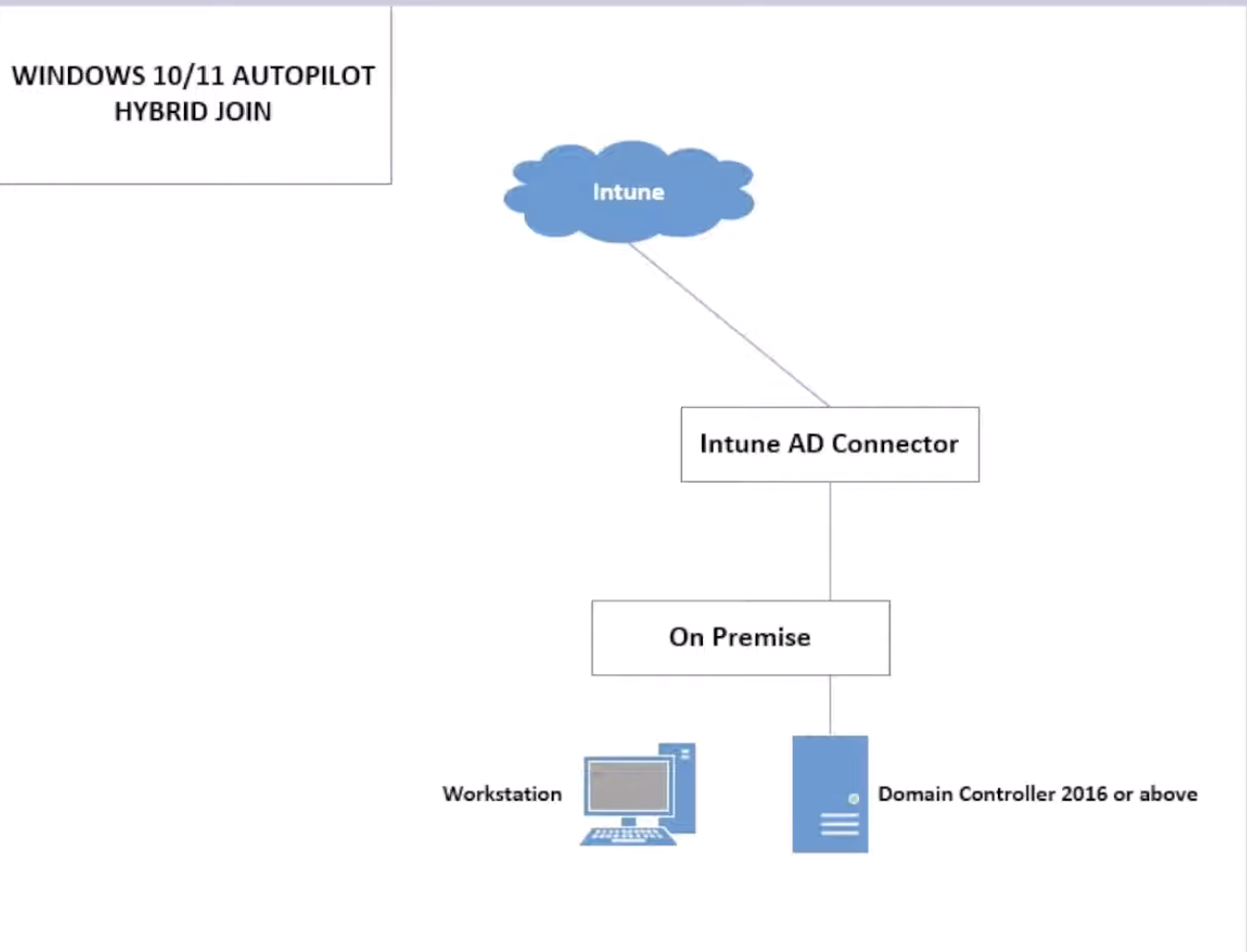
Voici comment donner ces permissions étape par étape :
1. Créer l'OU dédiée
Dans Active Directory Users and Computers :
- Clic droit sur votre domaine → New → Organizational Unit
- Nommez-la
Intune Hybrid Devices - Décochez "Protect container from accidental deletion" si nécessaire
2. Déléguer les permissions sur l'OU
Méthode 1 : Assistant de délégation (Recommandée)
- Clic droit sur l'OU "Intune Hybrid Devices" → Delegate Control...
- Dans l'assistant :
- Next → Add → Saisissez le nom du Managed Service Account (MSA) créé par le connecteur
- Ou ajoutez le groupe Domain Computers temporairement
- Sélectionnez les tâches à déléguer :
- ☑️ Create, delete, and manage computer accounts
- ☑️ Reset user passwords and force password change at next logon
- ☑️ Read all user information
- ☑️ Modify the membership of a group
Méthode 2 : Permissions avancées (Plus précise)
- Clic droit sur l'OU → Properties → Security → Advanced
- Add → Saisissez le compte MSA ou le compte de service
- Permissions détaillées à cocher :
Type: Allow
Applies to: This object and all descendant objects

Permissions spécifiques :
☑️ Create Computer objects
☑️ Delete Computer objects
☑️ Write all properties
☑️ Read all properties
☑️ Reset password
☑️ Change password
☑️ Validated write to DNS host name
☑️ Validated write to service principal name
3. Permissions sur le conteneur Managed Service Accounts
Dans Active Directory Users and Computers :
- View → Cochez Advanced Features (pour voir les conteneurs système)
- Naviguez vers Domain → System → Managed Service Accounts
- Clic droit sur Managed Service Accounts → Properties → Security
- Add → Ajoutez le compte qui installe le connecteur
- Permissions à donner :
- ☑️ Create msDs-ManagedServiceAccount objects
- ☑️ Read
- ☑️ Write
4. Vérifier avec PowerShell (Optionnel)
# Vérifier les permissions sur l'OU
Get-Acl "AD:\OU=Intune Hybrid Devices,DC=votre-domaine,DC=com" | Format-List

# Vérifier le MSA créé
Get-ADServiceAccount -Filter * | Where-Object {$_.Name -like "*Intune*"}
5. Configuration dans le connecteur Intune
- Ouvrez l'application "Intune Connector for Active Directory"
- Configure → Spécifiez l'OU cible :
OU=Intune Hybrid Devices,DC=votre-domaine,DC=com - Test la connexion et les permissions
6. Configuration dans le portail Intune
- Microsoft Intune admin center → Devices → Windows enrollment
- Windows Autopilot deployment profiles → Créez ou modifiez un profil
- Dans Out-of-box experience (OOBE) → Spécifiez l'OU cible
Points importants :
- Le nom exact du MSA sera visible dans l'application du connecteur après installation
- Si vous ne trouvez pas le MSA, utilisez temporairement un compte de service dédié
- Testez toujours avec un appareil de test avant le déploiement en production
- Les permissions peuvent prendre quelques minutes à se propager dans AD
Cette configuration permettra au connecteur de créer et gérer les comptes d'ordinateurs dans l'OU dédiée en toute sécurité.